TABLE OF CONTENTS
Overview
A step-by-step guide to replacing the lower PCB on a Stages SB20 smart bike.
Tools required:
- 3 mm hex key
- Small Phillips head screwdriver
Replacement parts required:
Replacement instructions
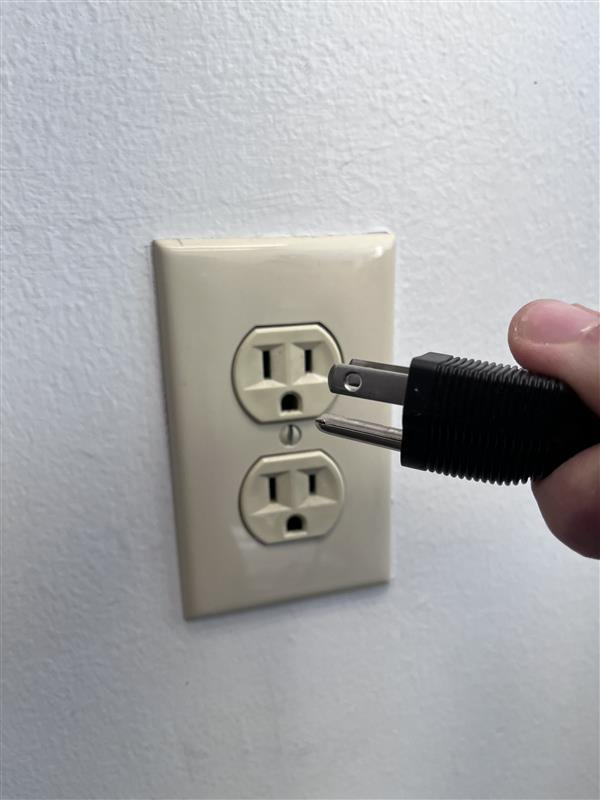
- Unplug the power cord from the wall outlet.
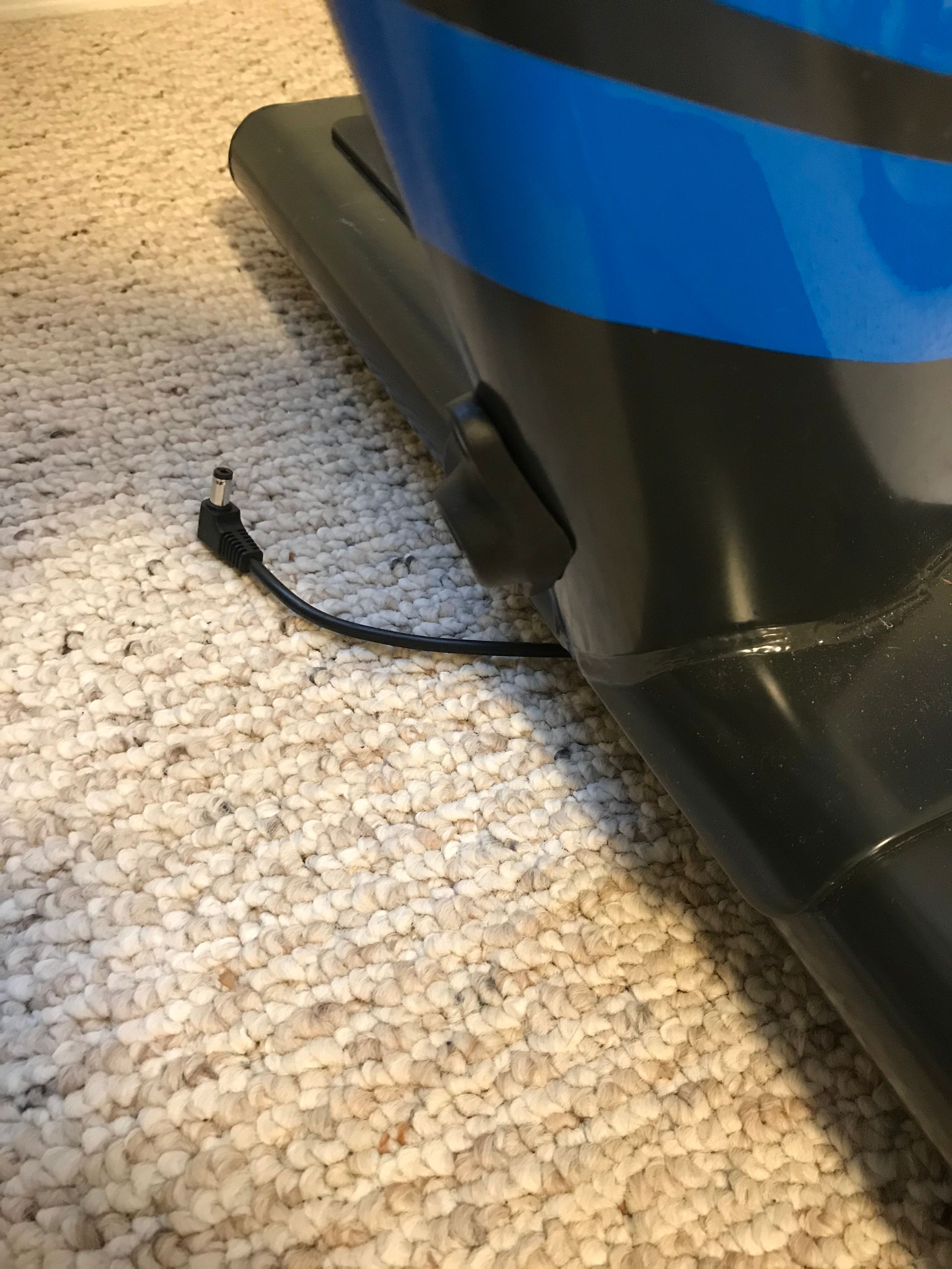
- Unplug the power cord from the bike at the front of the rear stabilizer.
- Remove the rear flywheel cap.
WARNING: The bike MUST be unplugged as outlined in Steps 1 & 2 before moving to this step!- Use a 3 mm hex key to remove the 2 screws that hold the rear flywheel cap in place.
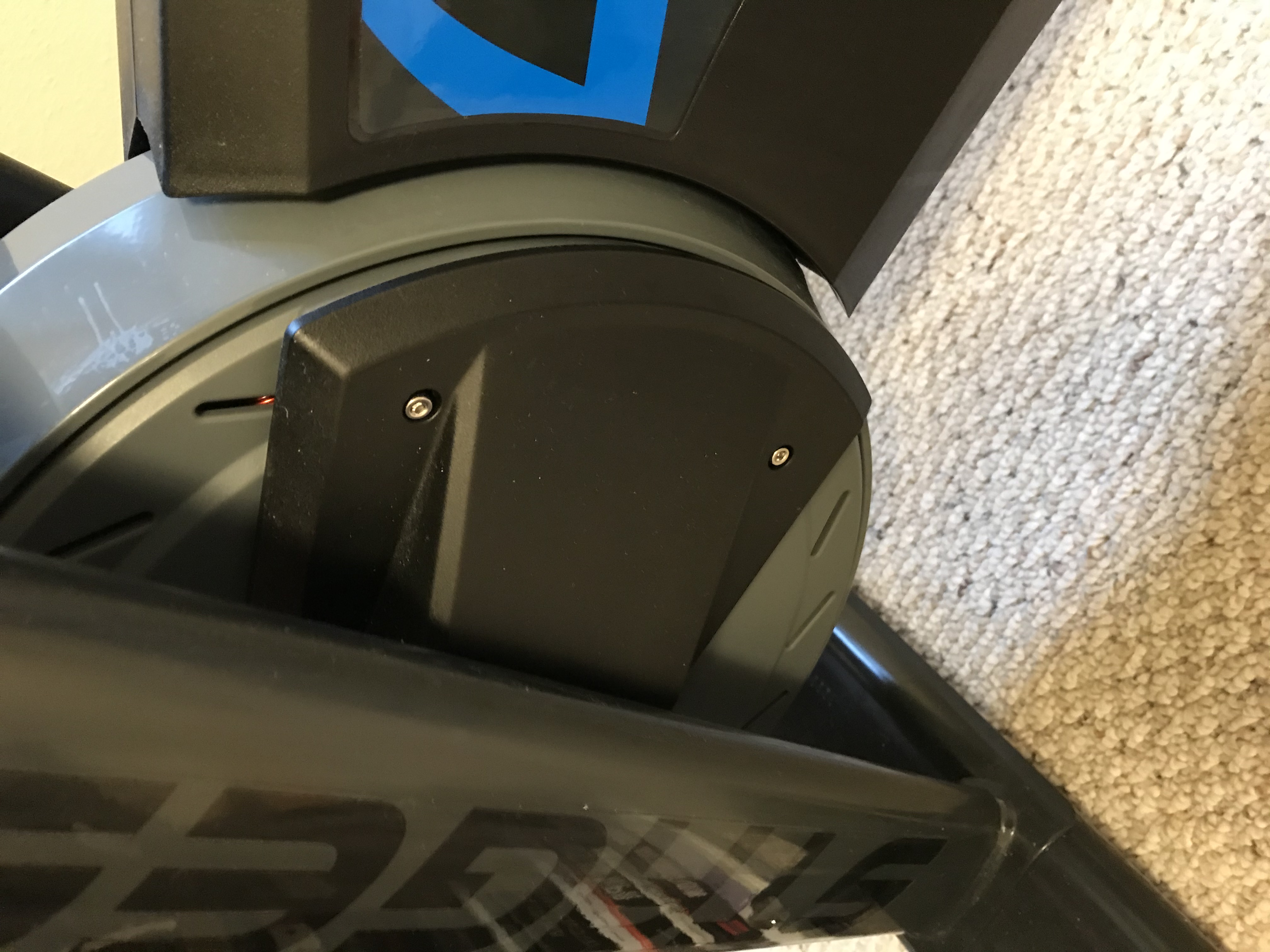
b. Slide the cap backward and set it aside.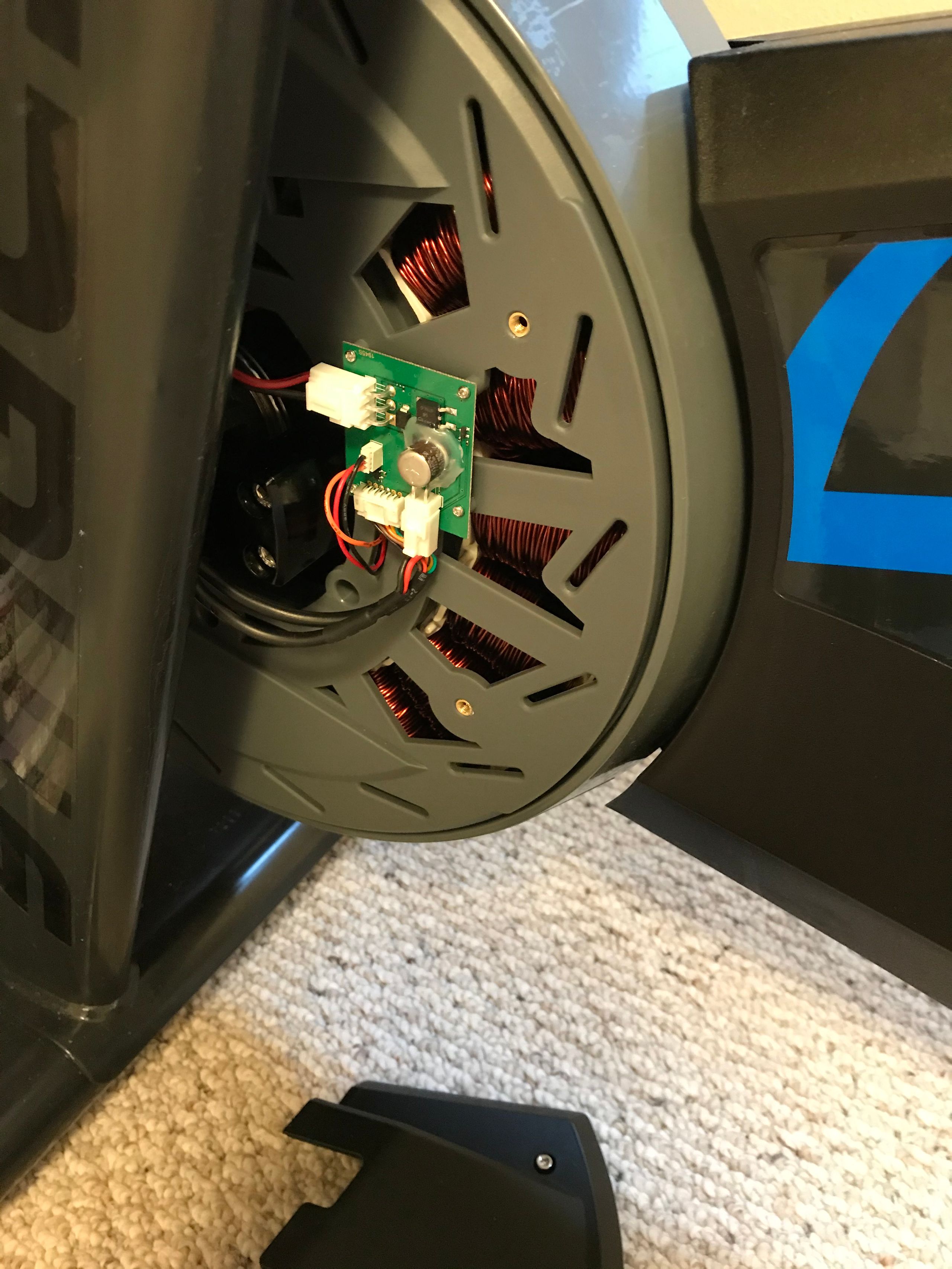
- Use a 3 mm hex key to remove the 2 screws that hold the rear flywheel cap in place.
- Remove all 4 connectors from the exposed PCB:
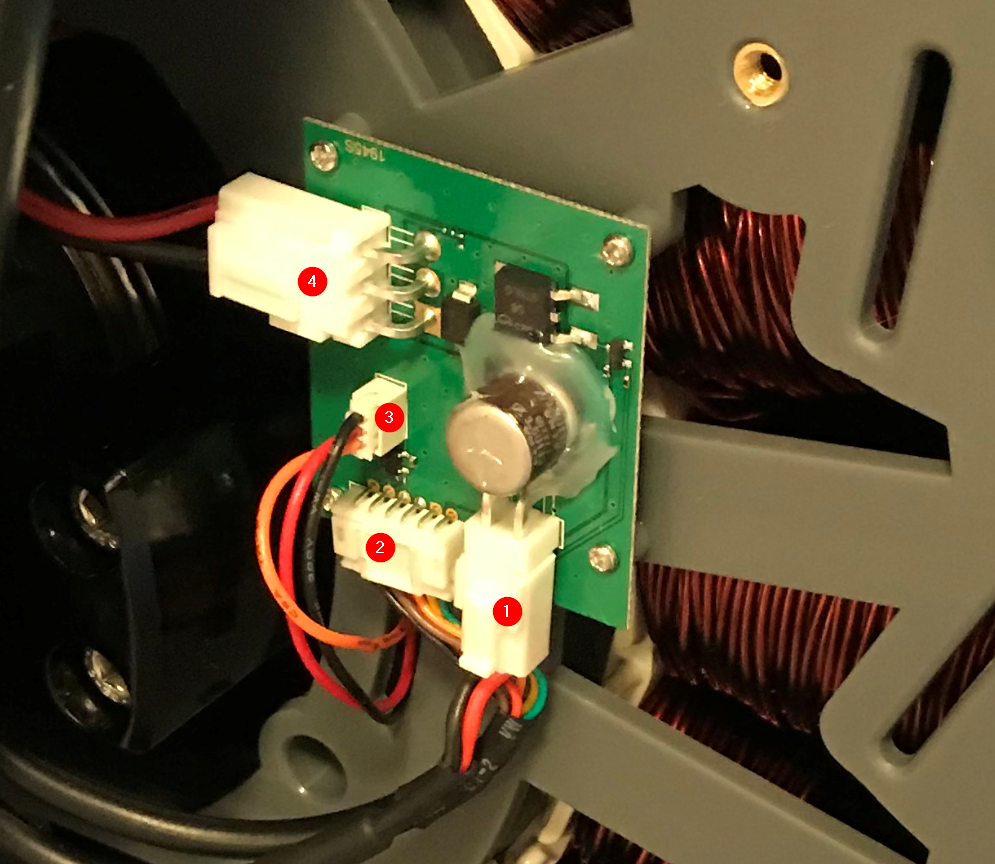
Connector 1: Pull back on the tab to release the clip, then pull down and away from the PCB.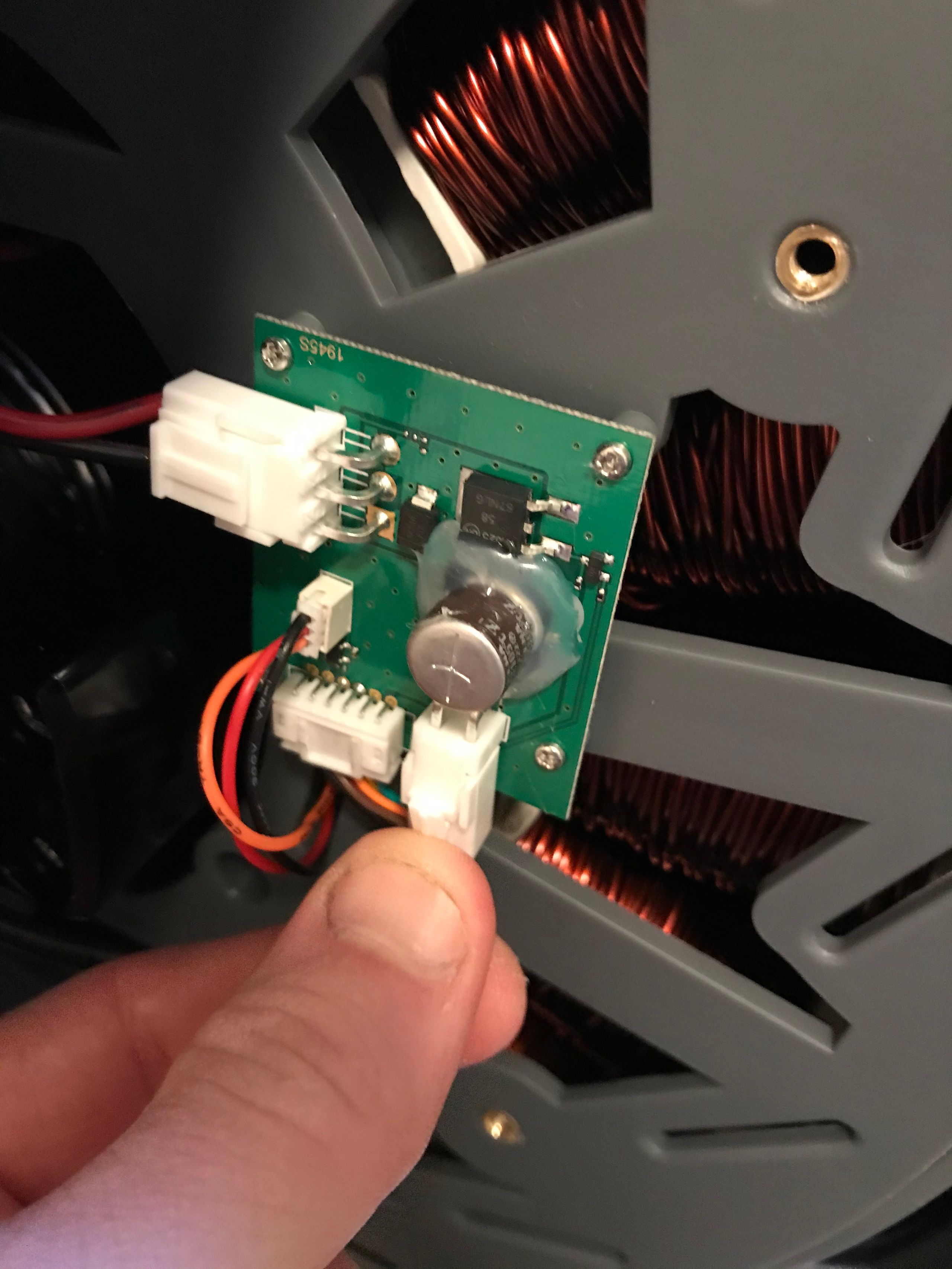
Connector 2: Pull down gently on the connector or all 6 wires at the same time. There is no clip for this connector.
TIP: If the connector is difficult to remove, a fingernail or small flathead screwdriver can be used to assist removal.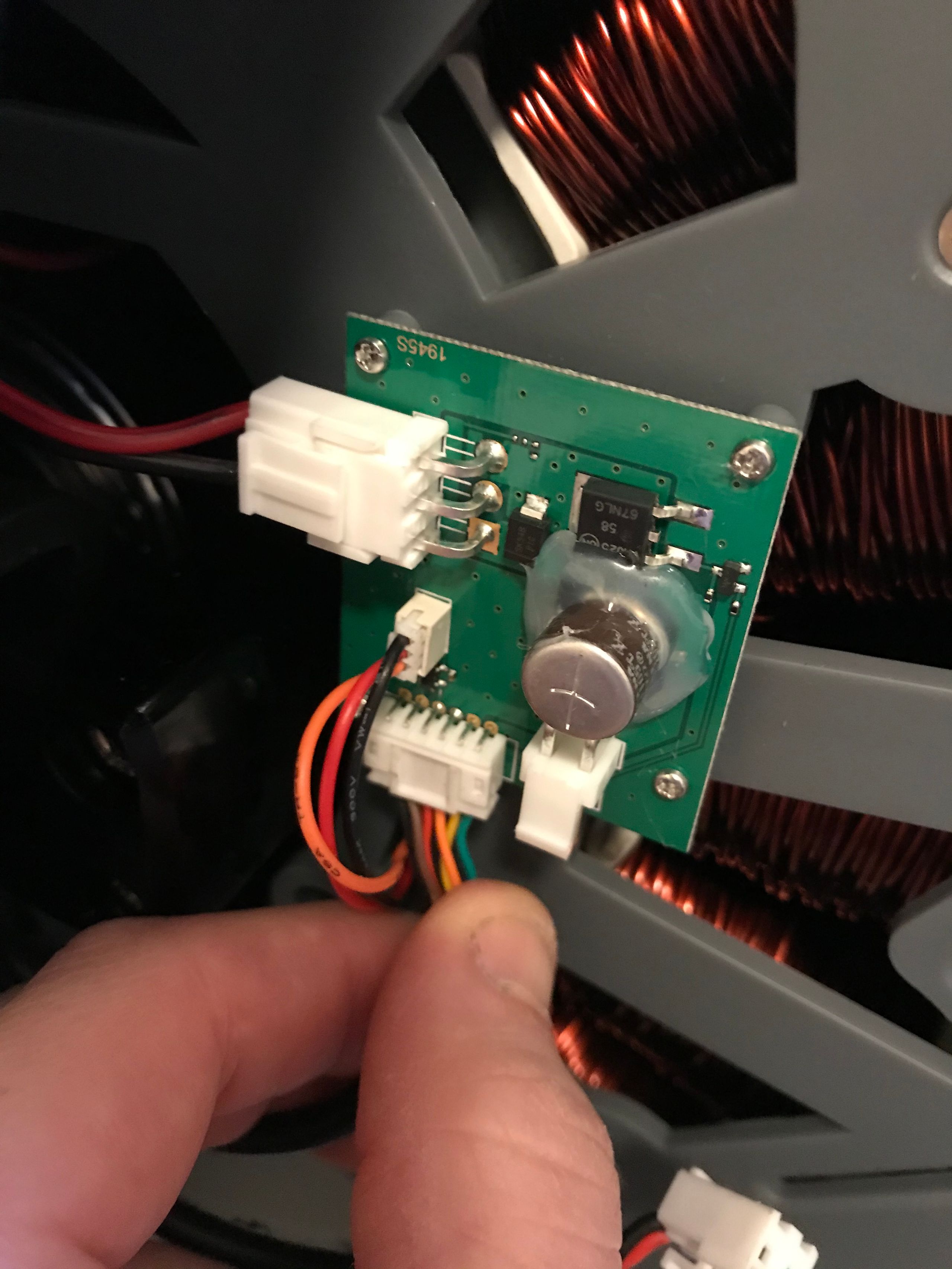
Connector 3: Pull away from the PCB on the 3 wires coming out of the connector. There is no clip for this connector.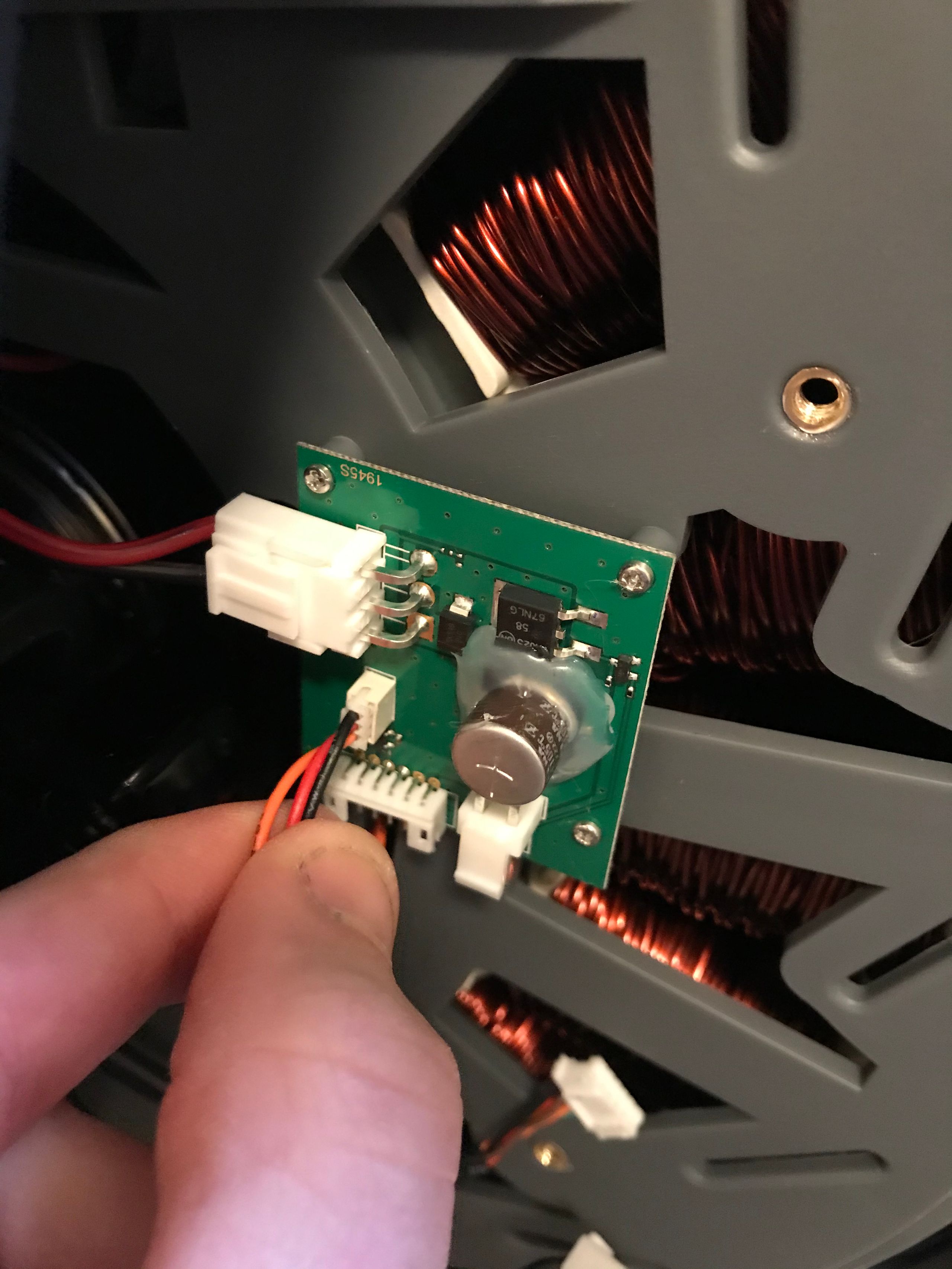
Connector 4: Reach around the lower left leg and push on the tab to release the clip, then push the connector away from the PCB.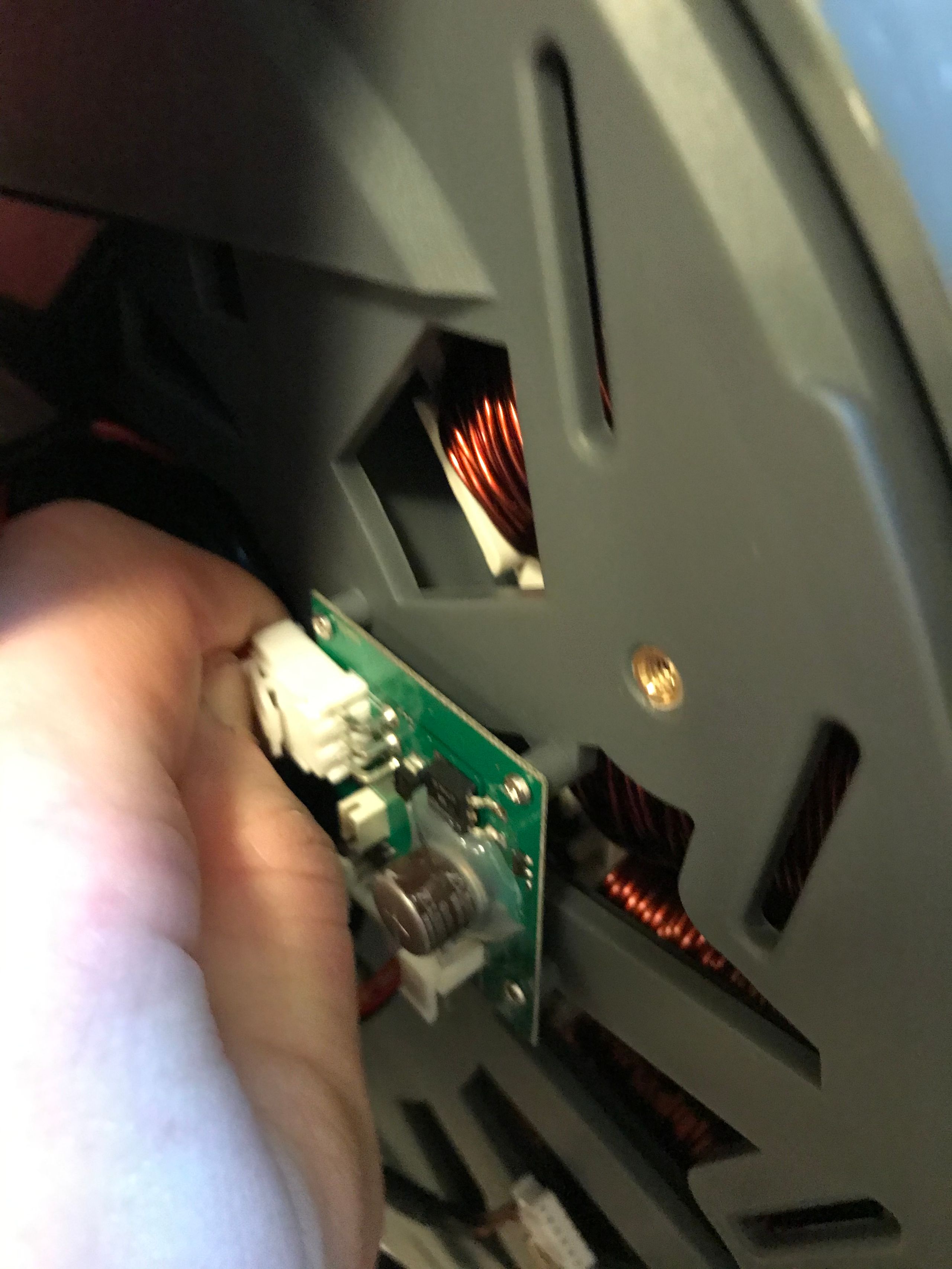
- With all four connectors unplugged, remove the PCB from the flywheel.
TIP: Place a mat or dish beneath the flywheel to catch the small, easily lost screws removed in this step. A yoga mat, high-thread-count blanket, or sheet works well.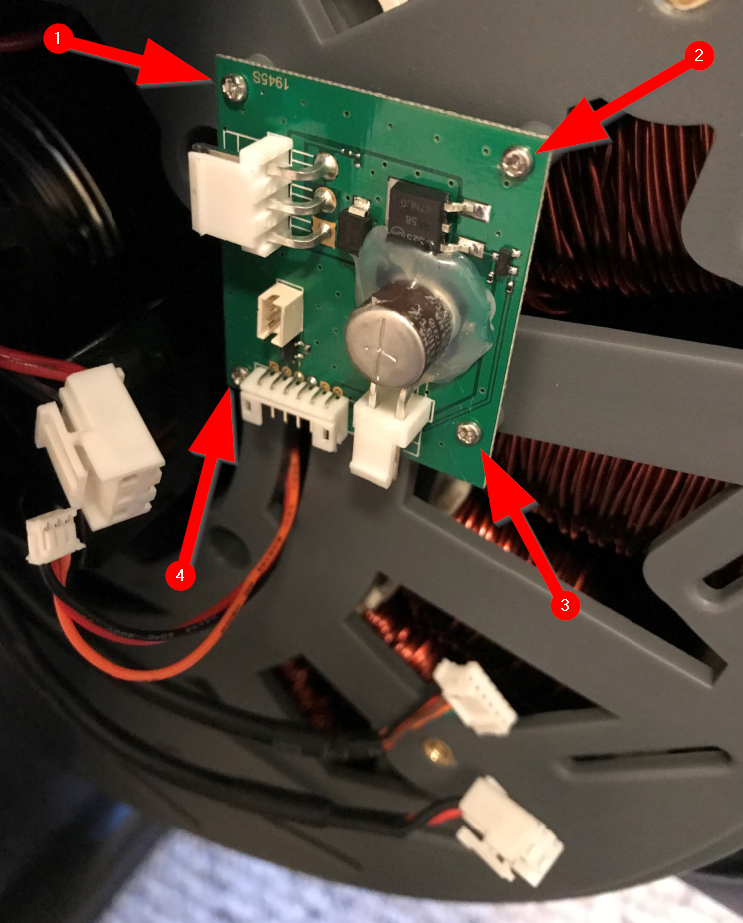
- Using a Phillips screwdriver, remove screws 1-4 in the picture above, then set them aside for later.
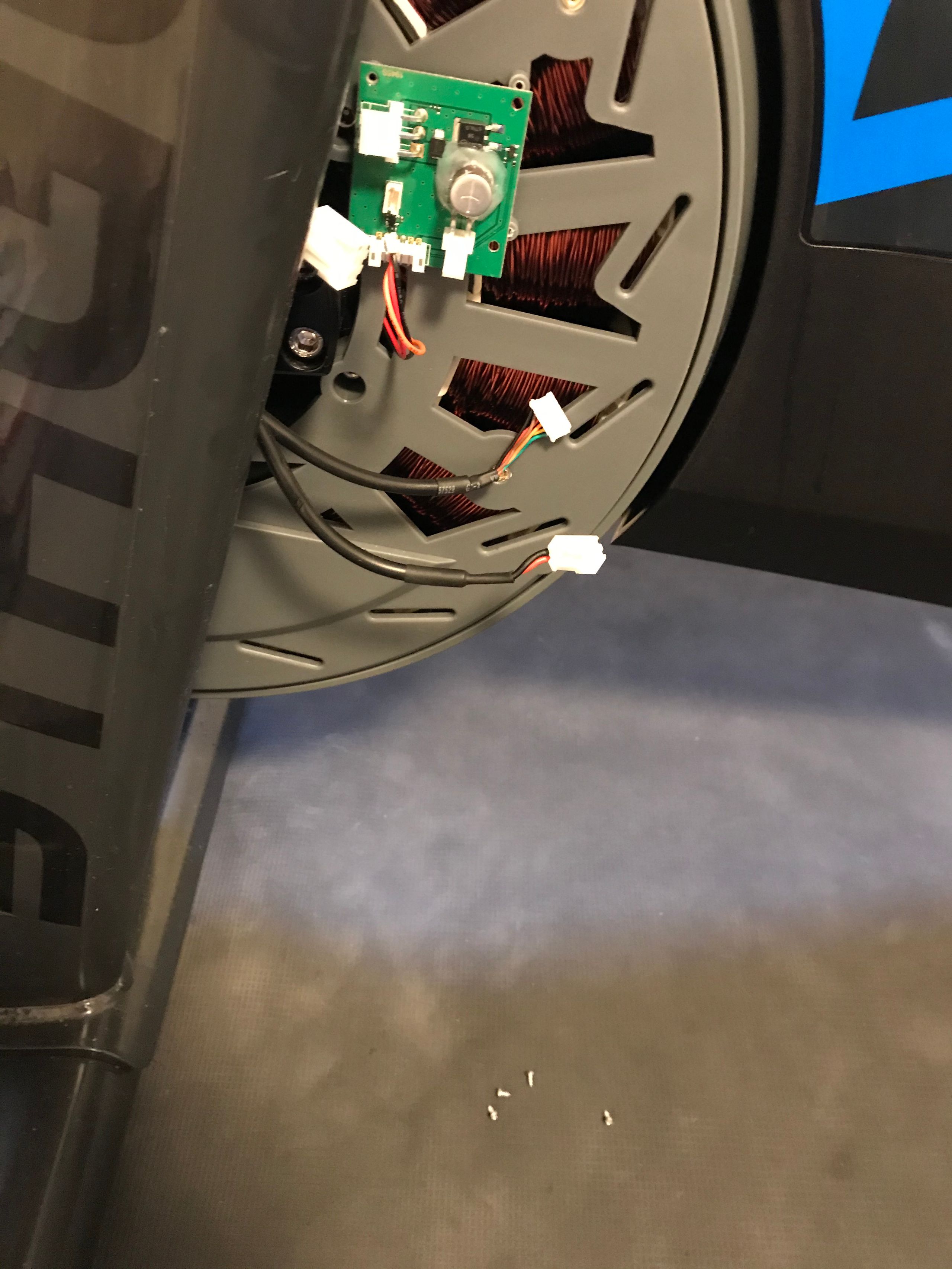
- Use your hand to gently pull the PCB off the flywheel.
- Using a Phillips screwdriver, remove screws 1-4 in the picture above, then set them aside for later.
- Install the replacement lower PCB.
- The replacement PCB may come with an auxiliary PCB connected to it; this is not necessary for this repair.
If you wish to keep this as a spare part, label it as the optical sensor for the flywheel speed measurement. If it does not have this you can skip to step 6c.
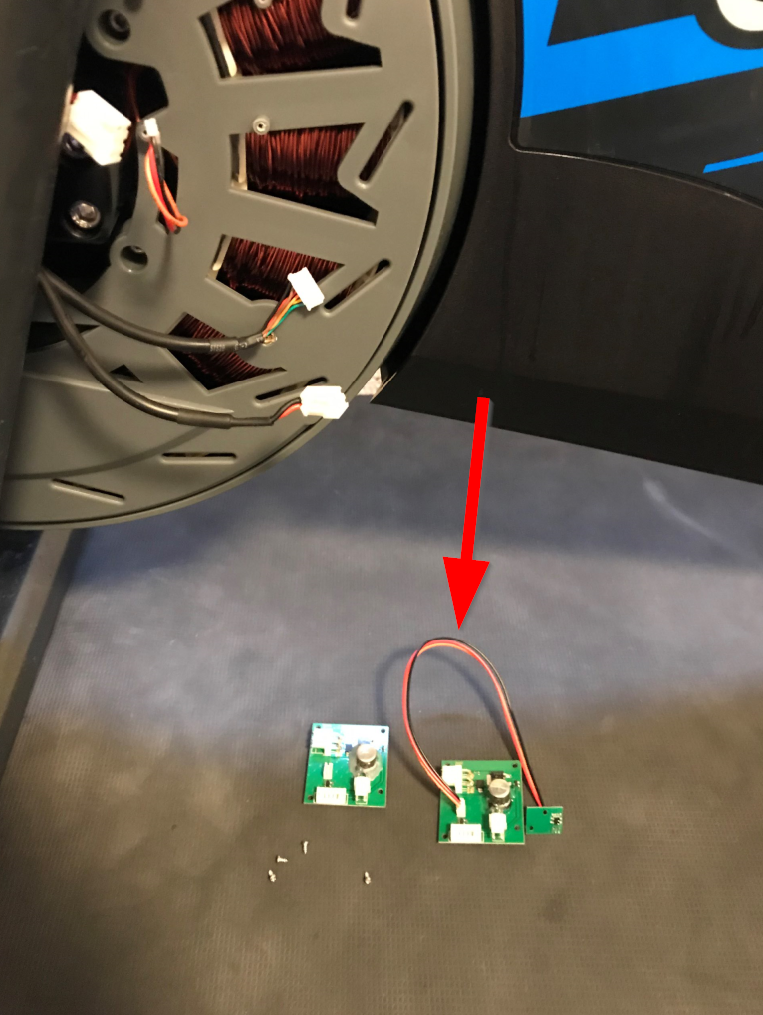
- Remove this wire by gently pulling it away from the PCB, like in previous steps, before installing the replacement PCB on the bike.
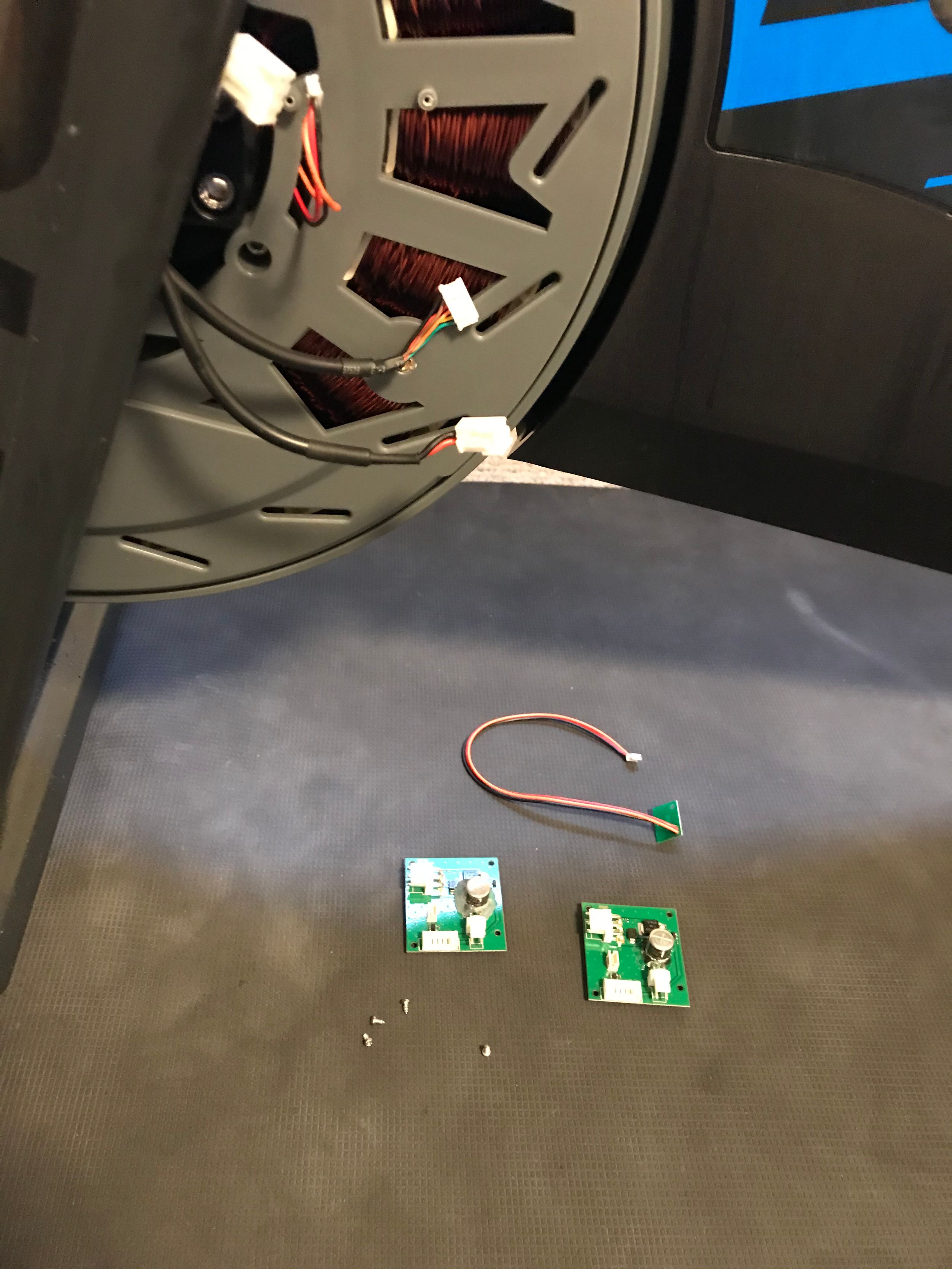
- Use a Phillips screwdriver and the screws from the previous steps to install the new PCB in the same orientation as before, as pictured below.
TIP: Use your finger as a guide to hold the small screw while moving it into place.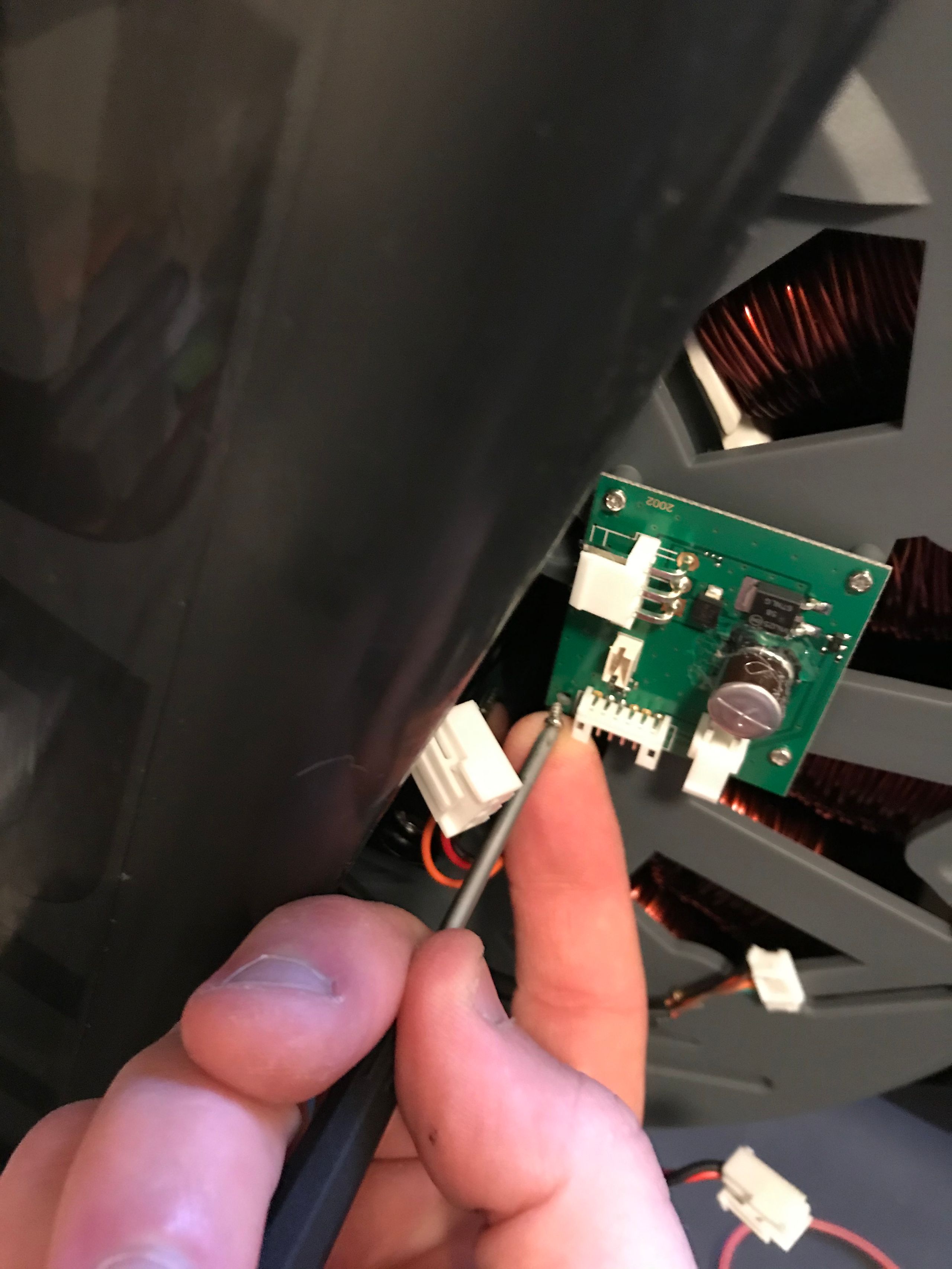
WARNING: Do not over-torque screws! These screws only need to be tightened until they touch the PCB, and the PCB is secure against the plastic bosses that touch the back of the PCB. Any further tightening may damage the plastic! These screws are designed to be tight without torque against the PCB. - Check that the PCB is secure by lightly pulling on the green surface of the PCB and making sure there is no play between the screw and plastic bosses.
- The replacement PCB may come with an auxiliary PCB connected to it; this is not necessary for this repair.
- Replace connectors
WARNING: Each connector requires only a small amount of force to reinstall, similar to the force required to squeeze toothpaste out of the tube. If you feel like you are pressing hard on a connector, STOP and re-examine the orientation of the connector and the receiver. It is likely they are backward!- Small 3-Wire Connector: Start with the small 3-wire connector. Be sure the wire comes out of the flywheel and beneath the PCB; this connector will only insert one way. Check that the tabs on the short sides of the connector line up with the openings of the receiver. You will also notice that the wire ports are offset.
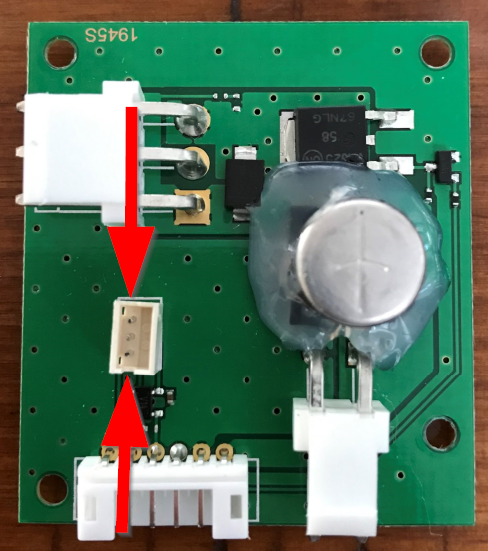
Press this connector into the receiver until you feel a small click.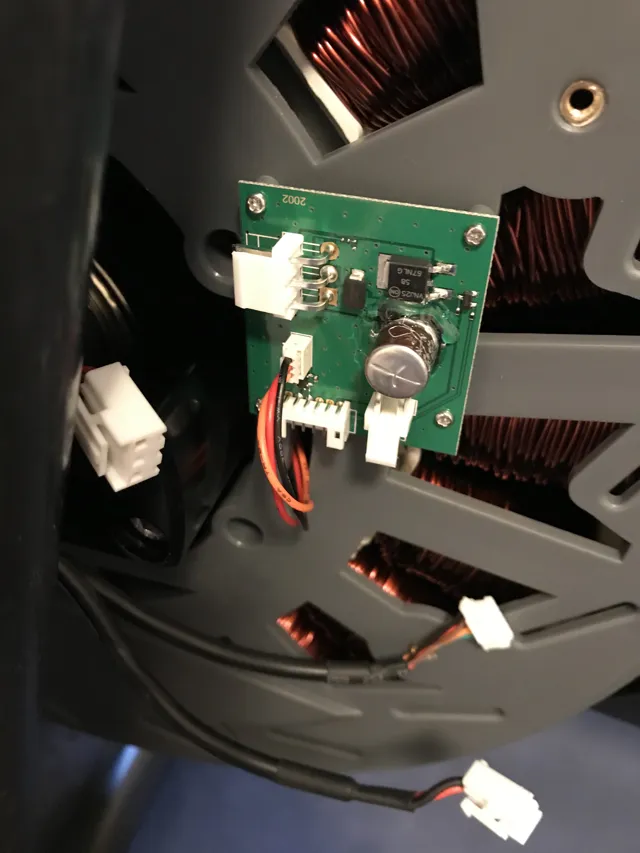
- 6-Wire Connector: Route the wire of the 6-wire connector such that it does not go through the loop created by the small 3-wire connector.
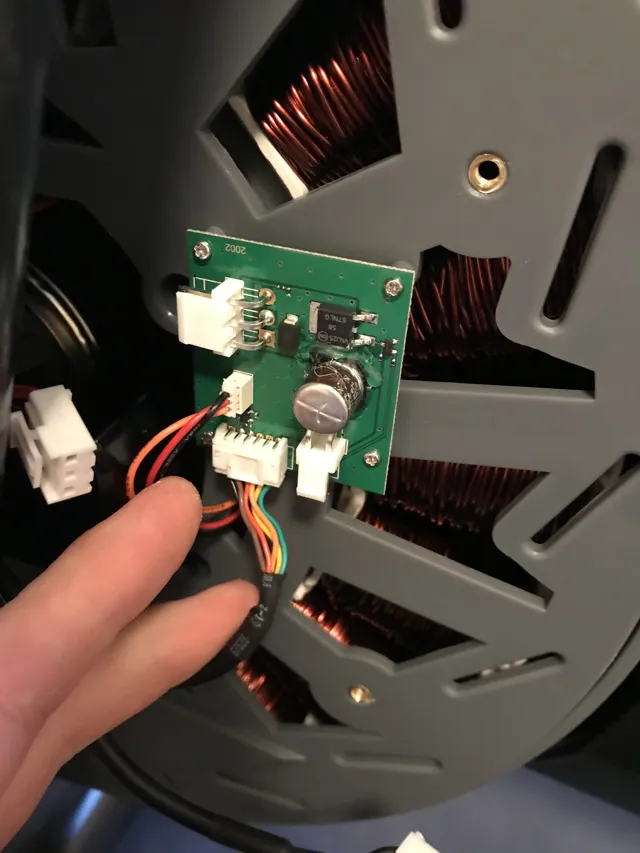
This connector has a square box that sticks out on one of the 2 long sides, which fits into the opening in the receiver.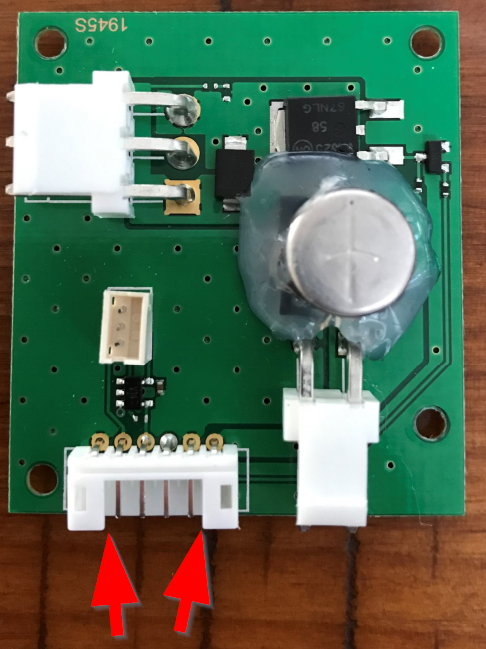
Press this connector in until you feel it seat with a slight snap or until there is no visible gap between the receiver and connector.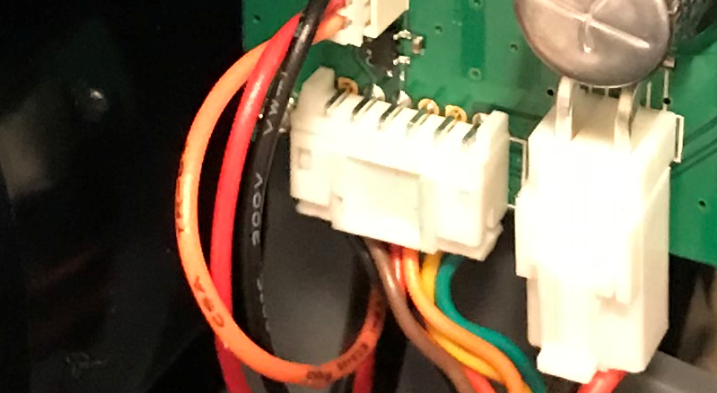
- 2-Wire Connector: Make sure you do not route the wire through the loops created by the previous connections. Align the side of the connector with the clip on it with the top of the receiver on the PCB, then press up until you hear a click.
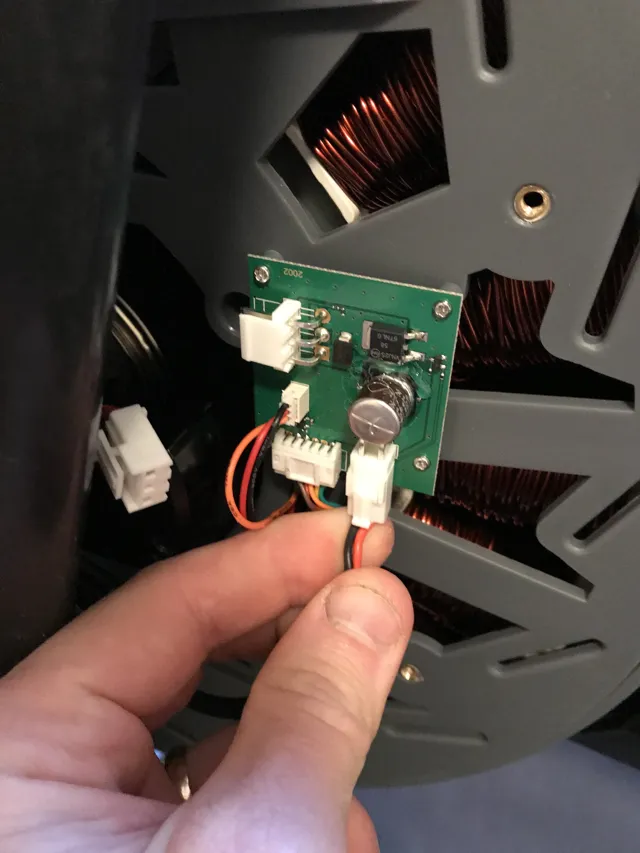
- Large 3-Wire Connector: This connector is difficult to reach, but it can be installed with just two fingers. Make sure the side of the connector with the clip is aligned with the top of the receiver, then press until you hear a click.
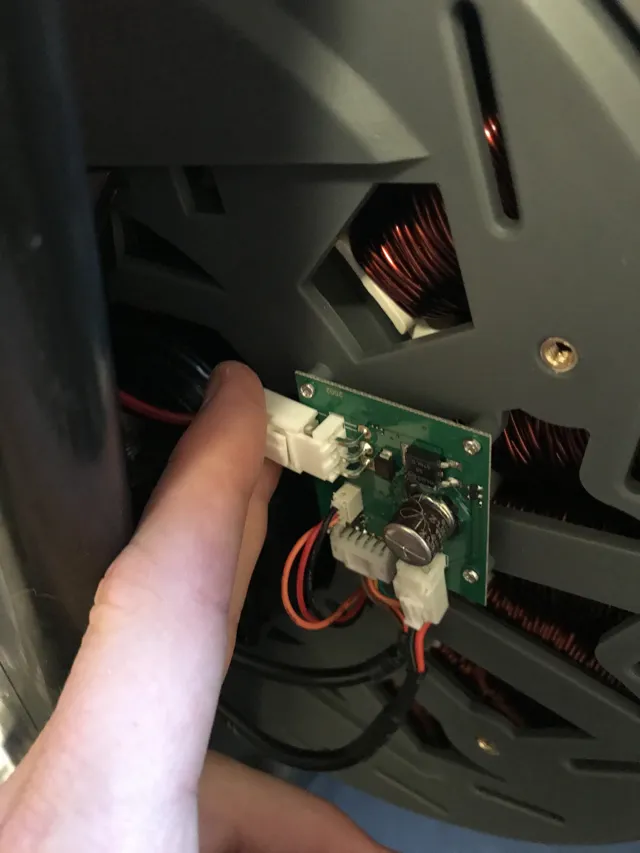
- Small 3-Wire Connector: Start with the small 3-wire connector. Be sure the wire comes out of the flywheel and beneath the PCB; this connector will only insert one way. Check that the tabs on the short sides of the connector line up with the openings of the receiver. You will also notice that the wire ports are offset.
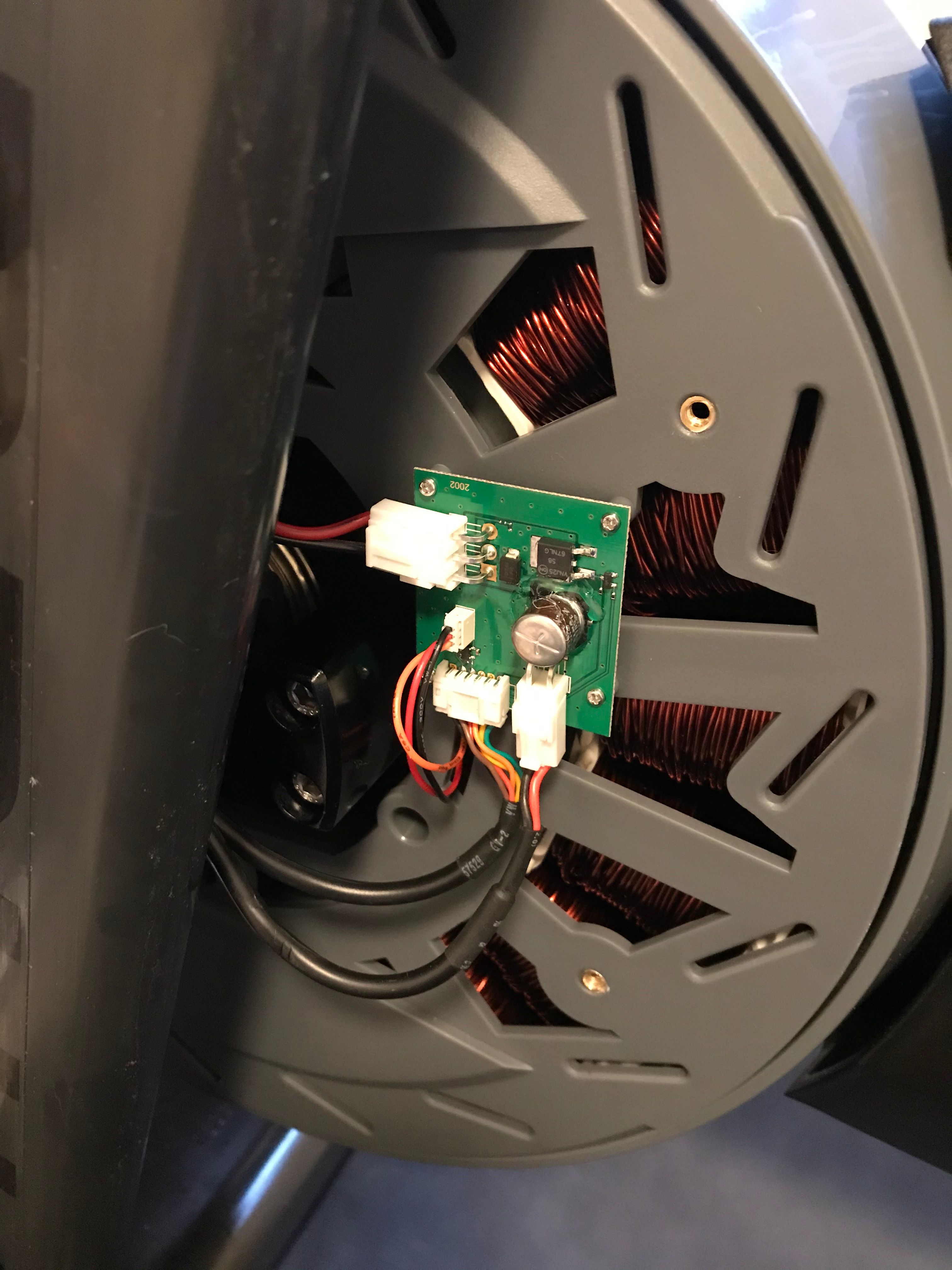
- Final wiring check: Check that the wiring on your PCB now looks exactly like this:
WARNING: Do not plug the bike back in until the bike is fully reassembled. Be sure to follow the correct plug order described in step #10 below. - Replace the rear flywheel cap.
- Carefully slide the plastic cap back onto the flywheel. The end of the cap behind the left leg must be inserted properly into the front cap in order for the screw holes to properly align. Check that the interface between the two plastic parts is aligned and push towards the front of the bike to get a proper installation.
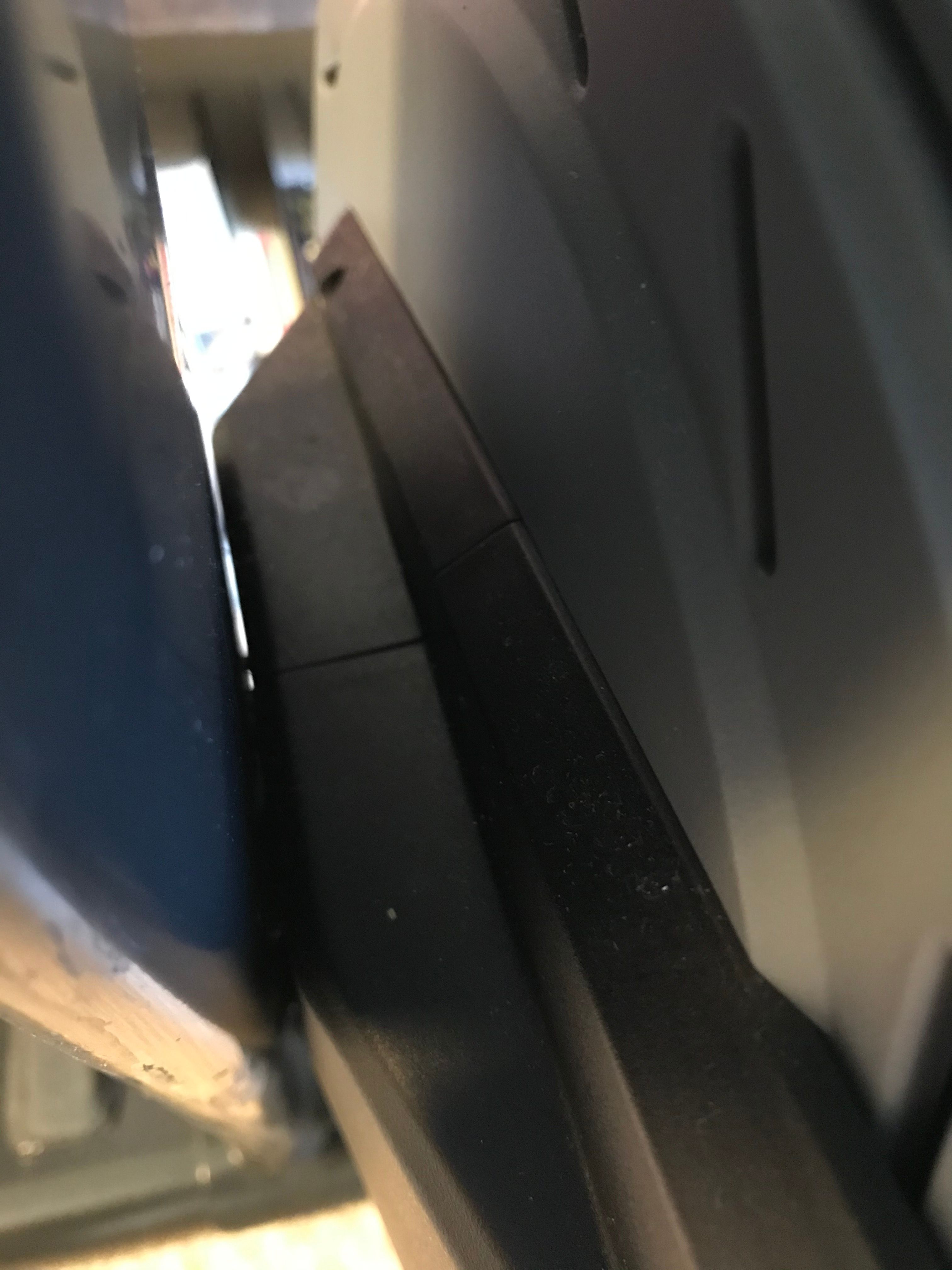
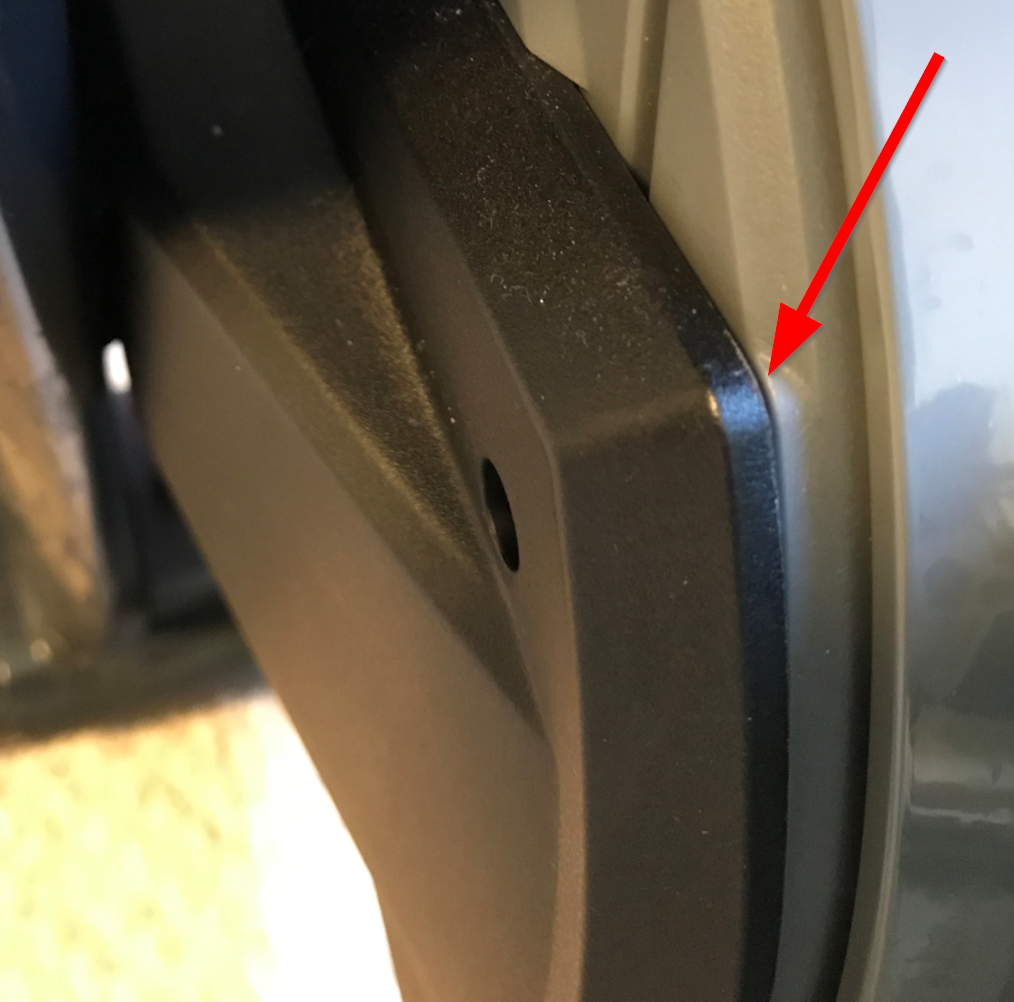
- Proper alignment should be checked before attempting to install the 2 screws, the flywheel contour should match the cover shape in the area indicated below.
- Once aligned, use a 3 mm hex key to install the 2 screws that were removed at the start of the instructions.
WARNING: There is no need to tighten these screws more than enough to hold the cap against the flywheel.
- Carefully slide the plastic cap back onto the flywheel. The end of the cap behind the left leg must be inserted properly into the front cap in order for the screw holes to properly align. Check that the interface between the two plastic parts is aligned and push towards the front of the bike to get a proper installation.
- Plug In Bike
WARNING: To ensure that the power is properly supplied to the bike, adhere to the following order of plugging in the bike.
a. Plug the power cord into the bike at the front of the rear stabilizer.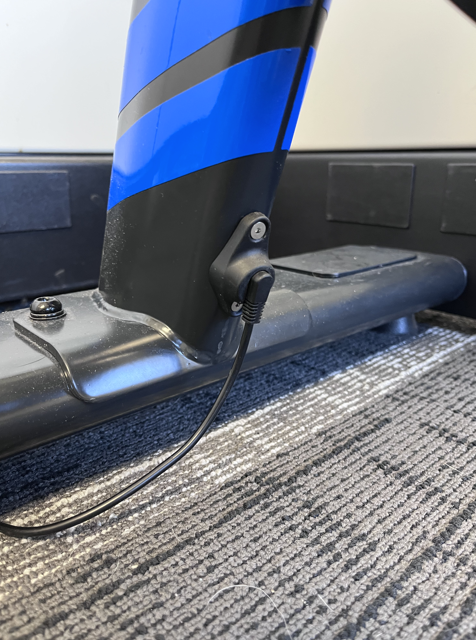
b. Plug the power cord into the wall outlet.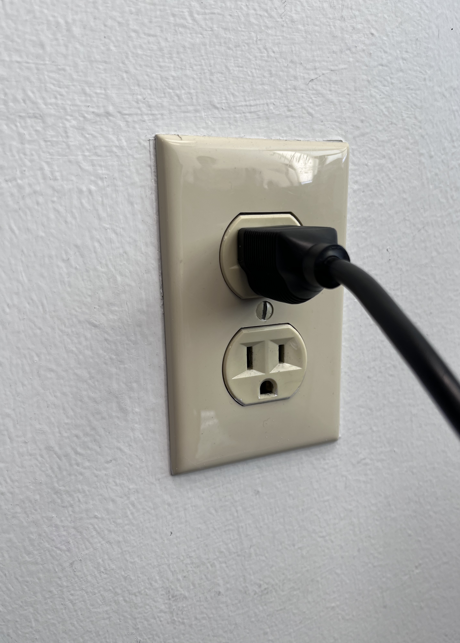
- The repair is now complete!
Was this article helpful?
That’s Great!
Thank you for your feedback
Sorry! We couldn't be helpful
Thank you for your feedback
Feedback sent
We appreciate your effort and will try to fix the article